

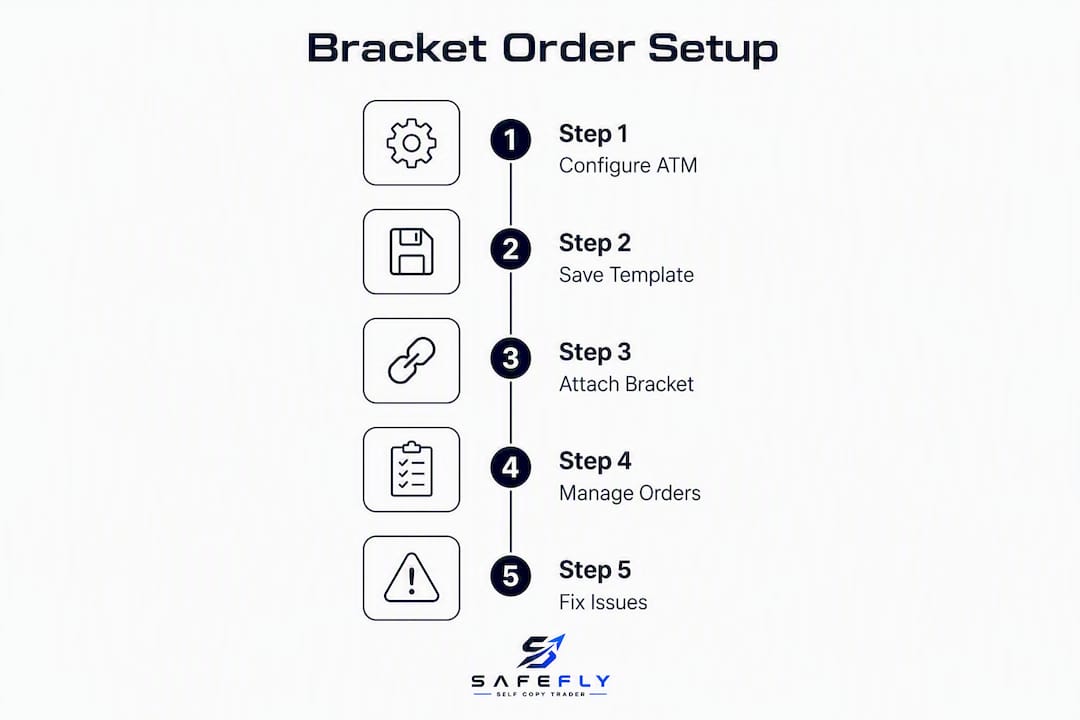
Tradovate supports bracket orders through its ATM (Automated Trade Management) strategy feature — set, save, and attach a template from the Chart or DOM in three steps: open the ATM configuration panel, select a saved template, then place your entry order and confirm the contingent exits appear. The bracket attaches on fill, pairing a take-profit limit and a stop-loss order as an OCO pair. One critical caveat before you trade live: OCO cancellation is managed at the platform level, not the exchange. CME Globex carries no native OCO logic, so a connectivity drop after one leg fills can leave the other order active and create an unintended position.
Table of Contents
- How do you create and save Tradovate bracket orders?
- How does attaching a bracket from the Chart or DOM actually work?
- How does Tradovate handle runners and partial fills?
- Why won't your bracket order attach — and how do you fix it?
- What do bracket orders protect you from — and what they don't?
- Scaling bracket strategies across multiple Tradovate accounts
- Key Takeaways
- The gap most traders miss with bracket orders
- Safefly: broker-side protection for multi-account Tradovate traders
How do you create and save Tradovate bracket orders?
Tradovate's ATM configuration is accessible from both Tradovate Web and Tradovate Trader Desktop, and the paths differ slightly between them.
On Tradovate Web (Chart): Click the gear icon to the right of the ATM on/off switch in the Chart module. The bracket settings dialog opens and lets you define stop and target distances in ticks, price, or currency — with separate settings available for buy and sell orders.
On Tradovate Trader Desktop (DOM): Open the DOM panel, locate the ATM template dropdown near the order entry controls, and select "New ATM Strategy" to open the configuration dialog.
Fields to set in every template:
- Entry type — determines whether exits pre-attach (limit/stop entry) or attach post-fill (market entry).
- Stop distance — set in ticks, price levels, or dollar currency.
- Target distance — same unit options as stop; keep units consistent within a template.
- Quantity per bracket — number of contracts covered by this bracket leg.
- OCO flag — choose Take Profit AND Stop Loss, Take Profit ONLY, or Stop Loss ONLY depending on your exit structure.
After configuring, name the template clearly (e.g., "MES-2tick-stop-4tick-target") and save it. Tradovate stores templates per account, and you can recall any saved template from the Chart order panel or the DOM dropdown without re-entering values.
Pro Tip: Maintain separate named templates for each contract type (MES vs ES, NQ vs MNQ) and for different session timeframes. A template calibrated in ticks for a micro contract will produce a very different dollar risk on the front-month contract — never share templates across contract classes without recalculating.
How does attaching a bracket from the Chart or DOM actually work?
The attachment workflow differs depending on where you place the entry and what order type you use.
Chart workflow:
- Select your saved ATM template from the Chart's order panel dropdown.
- Choose your entry type (limit, stop-limit, or market).
- Click to place the entry on the chart.
- Confirm that contingent orders appear as highlighted lines on the chart immediately after fill.
DOM workflow:
- Select the bracket template from the DOM's ATM dropdown.
- Place the entry by clicking the bid or ask on the DOM ladder.
- Verify that the DOM highlights the main order and both contingent orders in distinct colors.
Entry type has a direct effect on how cleanly the bracket packages. Limit and stop-limit entries create a parent order with exits pre-staged; when the entry fills, exits activate simultaneously. Market entries execute immediately, and exits attach post-fill — that brief gap between fill confirmation and exit placement is where latency or race conditions can occur. For that reason, limit entries are the preferred method when bracket integrity matters.
Verification checklist after placing any bracket:
- Contingent orders appear on the Chart as horizontal lines or on the DOM as highlighted rows.
- Order confirmations show both a working take-profit and a working stop-loss.
- Contract quantity on each exit matches the filled entry quantity.
- DOM displays "Working" status for exits, not "Suspended."
Pro Tip: After placing a bracket in a live session, immediately check the Orders panel — not just the Chart. Chart visuals can lag by a tick or two under fast market conditions, while the Orders panel reflects actual exchange acknowledgment.
How does Tradovate handle runners and partial fills?

Partial fills introduce the most common source of bracket mismatches. If an entry order for two contracts fills only one, some platforms do not automatically scale exit legs to match the filled quantity — leaving exit orders sized for the original two contracts on a one-contract position.
On Tradovate, verify partial-fill behavior in simulation before trading live with multi-contract entries. A common runner configuration for a two-contract trade looks like this: one contract targets a fixed tick profit (the "scalp" leg), and the second contract holds for a larger move (the "runner" leg). Each leg gets its own bracket quantity setting within the ATM template.
| Dimension | Limit/Stop-Limit Entry | Market Entry |
|---|---|---|
| Entry type required | Limit or stop-limit | Market |
| Stop/target specification | Ticks, price, or currency | Ticks, price, or currency |
| Exit attachment timing | Pre-staged on fill | Post-fill (brief gap) |
| Partial-fill exit scaling | Verify per contract in sim | Verify per contract in sim |
| OCO cancellation risk | Lower (exits pre-staged) | Higher (race-condition window) |
| Template save location | Chart panel / DOM dropdown | Chart panel / DOM dropdown |
Pro Tip: When running a two-contract bracket, set quantity-per-bracket to 1 for each leg and configure two separate bracket legs within the same ATM template. This gives each contract its own exit logic and prevents one fill from canceling the other leg prematurely.
Why won't your bracket order attach — and how do you fix it?
Most bracket failures trace to one of five causes. Work through this checklist before contacting support.
- ATM not enabled: Confirm the ATM on/off toggle is active in the Chart or DOM panel before placing the entry.
- Wrong template selected: A template built for ES will not apply correct tick values to MES — verify the template name matches the contract.
- Market order placed externally: Brackets typically attach when the entry is placed through Tradovate's Chart or DOM. Orders routed through TradingView's integration may not carry ATM context, leaving exits unattached.
- Manual OCO modification: Canceling one leg of an OCO pair manually does not always cancel the other leg. After any manual edit, inspect the Orders panel and cancel orphaned legs explicitly.
- Session or time-in-force mismatch: An exit order set to Day will expire at session close; verify time-in-force matches your intended hold duration.
When escalating to Tradovate support, include: the timestamp and time zone of the event, the contract and expiration, the order IDs for both the entry and any orphaned exits, the exact steps to reproduce the issue, and a screenshot of the Chart or DOM at the moment of failure.
Pro Tip: Reproduce every suspected bracket issue in a demo account first. Demo mode replicates the platform's order routing logic, and capturing the exact sequence in simulation gives support a clean reproduction case — significantly faster than diagnosing a live-session log.

What do bracket orders protect you from — and what they don't?
Bracket orders enforce pre-planned exits and remove the temptation to hold a losing position past a defined threshold. They also enable structured scale-outs across multiple contracts without manual intervention at the moment of trade.
What brackets do not do is equally important. They cannot prevent gap losses — if price opens beyond your stop level, the stop fills at the next available price. They do not replace account-level daily P&L limits. And because CME Globex has no native OCO support, the platform manages all cancellations; a connectivity interruption after one leg fills can leave the other order live at the exchange.
Treat platform-side OCO as execution convenience, not a guaranteed safety net. The practical response is to layer controls: use brackets for per-trade exit discipline, add position-sizing rules before entering any trade, and enforce daily loss lockouts at the account level. Bracket orders automate exits so you never trade without a stop, but they are one layer of a complete risk framework, not the whole framework.
Scaling bracket strategies across multiple Tradovate accounts
Managing brackets manually across more than one Tradovate account multiplies the risk of human error — a missed template selection or a forgotten stop on a second account can produce losses that a single-account trader would never face. Automated trade-mirroring solutions enforce broker-side protective stops and daily P&L limits across accounts in ways that per-trade bracket settings cannot.
Broker-side automation provides:
- Trade mirroring — replicates entries from a lead account to all linked accounts simultaneously.
- Broker-side protective stops — stops execute at the broker level, remaining active even if the platform UI disconnects.
- Daily P&L lockouts — halt trading across all accounts when a defined loss threshold is reached.
- Consistent contract sizing — applies uniform risk parameters regardless of which account receives the mirrored trade.
Use cases include prop-firm account replication, managed-account traders running live and demo accounts in parallel, and group-trading setups where consistent stop placement is a compliance requirement.
Pro Tip: Broker-side stops and platform-level brackets serve different failure modes. A platform bracket fails when connectivity drops; a broker-side stop persists independently. Running both simultaneously gives you redundant protection at two distinct layers.
Key Takeaways
Tradovate bracket orders, implemented through ATM strategies, require correct template configuration, limit-entry preference, and layered account-level risk controls to function reliably in live trading.
| Point | Details |
|---|---|
| ATM templates are the mechanism | Create, name, and save separate ATM templates per contract before trading live. |
| Prefer limit entries | Limit and stop-limit entries pre-stage exits on fill, reducing the OCO race-condition window. |
| Test in simulation first | Reproduce every bracket setup and partial-fill scenario in demo mode before going live. |
| OCO is platform-side only | CME Globex has no native OCO; plan for connectivity failures and verify orphaned orders after any manual edit. |
| Safefly adds broker-side protection | For multi-account traders, Safefly enforces broker-side stops and daily P&L lockouts that per-trade brackets cannot provide. |
The gap most traders miss with bracket orders
The standard advice on bracket orders focuses on setup mechanics — pick your ticks, save your template, place your entry. That guidance is correct but incomplete. The more consequential decision is what you do around the bracket: how you size the position before the bracket exists, and what happens to your other accounts if the bracket on account one fails.
A bracket enforces your exit plan on a single trade. It does not enforce your risk plan across a session or a portfolio. Traders who rely on brackets as their primary risk control tend to discover the gap during fast markets or connectivity events — exactly when the gap is most expensive. Position size first, bracket second, and account-level lockouts third. That sequence is not a preference; it is the order in which each control layer can actually protect you.
Safefly: broker-side protection for multi-account Tradovate traders
Traders running a single Tradovate account can manage bracket orders manually with discipline and the right templates. Traders running two, three, or more accounts cannot — the margin for error at execution speed is too narrow, and a missed stop on any one account erases the discipline the others maintained.
Safefly automates trade replication across multiple Tradovate accounts and places broker-side protective stops that remain active even when the platform UI disconnects. Daily P&L lockouts halt trading across all linked accounts when a defined threshold is reached, and secure OAuth integration handles authentication without storing credentials. Trade analytics and AI coaching give traders a structured view of performance across accounts, not just individual trades.
For multi-account futures traders who need consistent risk enforcement at every execution, start with Safefly's 3-day trial and verify how broker-side stops complement the ATM bracket logic already in your Tradovate workflow.