

To revoke app access on Tradovate, log into trader.tradovate.com, open Application Settings, go to the Accounts tab, and click Revoke Permission next to the app in question. Developers and administrators managing several accounts can instead call POST /v1/user/revoketradingpermissions with a Bearer token and a list of tradingPermissionIds, or use cancelEverything to strip subscriptions, plug-ins, and trading permissions in one pass. If you trade both live and demo, repeat the process on each environment.
TL;DR:
- Revoke app permissions on Tradovate through the web UI by selecting the specific accounts tab, locating the app, and clicking revoke, ensuring the correct environment is targeted.
- For bulk or automated revocation, use the API endpoint POST /v1/user/revoketradingpermissions with a list of permission IDs and a valid Bearer token, noting the need to call both live and demo endpoints if applicable.
- The CancelEverything endpoint can perform full environment cleanups, including subscriptions and plug-ins, but requires careful logging and restricted permissions due to its irreversible broad scope.
- Confirm revocation by verifying the permission status in the web UI, checking subscription lists, and contacting support with relevant timestamps if access persists.
- Building proactive controls, like those offered by SafeFly, can reduce reliance on reactive revocation by automatically managing trades and risk across multiple accounts.
Table of Contents
- How Do I Revoke App Access in the Tradovate Web UI?
- How Do I Revoke Trading Permissions via the Tradovate API?
- When Should You Use CancelEverything Instead?
- How Do You Confirm Access Was Actually Revoked?
- Why Prompt Revocation Matters for Prop Firms and Multi-Account Traders
- What This Guide Gets Right (and Where the Advice Usually Stops Short)
- A Related Option: Continuous Protection Instead of Emergency Revocation
- Official Documentation and Support to Bookmark
- Sources
- FAQ
How Do I Revoke App Access in the Tradovate Web UI?
Most Tradovate users never touch the API, and they don't need to. The web interface handles single-account revocations in under a minute once you know where to look.
Start by logging into trader.tradovate.com and confirming which environment you're in. Live and demo accounts are managed separately, so a permission granted on one won't show up under the other.
From there:
- Click the account menu in the top-right corner and select Application Settings.
- Open the Accounts tab, which lists every third-party app currently holding trading permissions on that account.
- Find the app by name and click Revoke Permission. The Tradovate Grant Permissions process documented by Collective2 shows this control flipping from "Grant Permission" to "Revoke Permission" once the change takes effect.
- If the app doesn't appear where you expect, check for case sensitivity. Some integrations register under an exact name or email string, and a mismatch can make an active connection look invisible in the list, a quirk noted in Tradovate's own linking instructions.
- Refresh the page or sign out and back in if the change doesn't reflect immediately.
If revocation still fails after a refresh, contact Tradovate support with a screenshot of the Accounts tab, your account ID, and the UTC timestamp of your attempt. That combination lets support staff trace the exact session without back-and-forth guessing.
How Do I Revoke Trading Permissions via the Tradovate API?
Developers and firms managing multiple accounts get more control, and more speed, through the API. Manual clicks don't scale when you're clearing access across a dozen sub-accounts after an incident, and the API gives you a scriptable, auditable trail that the UI simply can't match at volume.
The core call is:
- Endpoint:
POST /v1/user/revoketradingpermissions - Body: a JSON object containing
tradingPermissionIds, an array of long integers identifying each permission to remove. - Authorization: a valid Bearer token in the request header. Confirm the token's scope and expiry before calling, and make sure you're pointed at the correct host:
live.tradovateapi.comfor live accounts,demo.tradovateapi.comfor demo, as explained in this key features of app security guide. - Response handling: the response returns
ok(boolean) anderrorTextfields per the Tradovate API documentation. A batch call can partially fail, so check each result rather than assuming a singleok: truecovers the whole list.
A minimal payload looks like this:
POST /v1/user/revoketradingpermissions
Authorization: Bearer <your_token>
Body: { "tradingPermissionIds": [10234, 10235, 10240] }
Pseudocode for handling the response typically loops through each returned entry, logs the errorText for anything that failed, and retries or flags those IDs for manual review. Keep a timestamped record of every revoke call, who triggered it, and what the API returned. That log becomes the only reliable answer when someone later asks "when exactly was that access removed?"
Pro Tip: Store your revoke logs separately from your trading logs. Mixing operational security records with trade history makes audits slower and increases the chance a compliance reviewer misses a revoked-access event entirely.
For background on how OAuth-based connections get authorized in the first place, see this walkthrough of setting up Tradovate OAuth integration.
When Should You Use CancelEverything Instead?
Revoking a single permission is precise. CancelEverything is the broader tool, and it's built for situations where you need a clean sweep rather than a targeted cut.
The CancelEverything endpoint can, in one call:
- Cancel active market-data subscriptions tied to the account.
- Cancel Tradovate platform subscriptions.
- Remove user plug-ins.
- Revoke trading permissions across the board.
Full cleanup requires the correct userId, and for subscriptions or plug-ins you may need to supply explicit ID lists rather than relying on a blanket flag. Critically, this call only touches the environment it's sent to. To fully clear an account that trades both live and demo, you need to call cancelEverything against both live.tradovateapi.com and demo.tradovateapi.com, a detail the API documentation flags directly. Because this endpoint is broad and effectively irreversible once executed, log the request and response before you run it, and restrict who on your team has authority to call it.
How Do You Confirm Access Was Actually Revoked?
A revoke call returning ok: true isn't the end of the process. Confirming the change stuck takes a few extra minutes.
- Return to Application Settings → Accounts on the web UI and verify the app now shows Grant Permission instead of Revoke, meaning no active grant remains.
- Check trusted devices and two-factor authentication settings. Remove any devices you don't recognize and rotate your password if the revocation followed a suspected compromise, steps outlined in Tradovate's trusted device guidance.
- Confirm that market-data subscriptions and plug-ins tied to the app are actually canceled, not just the trading permission. If you used the API, re-run the relevant list endpoint to confirm the
tradingPermissionIdsno longer appear, rather than trusting the UI alone. - If access persists anywhere, gather timestamps, request IDs, and screenshots, then send them to Tradovate support for manual review.
Why Prompt Revocation Matters for Prop Firms and Multi-Account Traders
Revoking access isn't just cleanup. It's a control that immediately limits execution privilege, which matters most the moment a trader fails an evaluation or leaves a funded program. Prop-firm account provisioning practices treat revocation as a standard offboarding step, not an emergency measure.
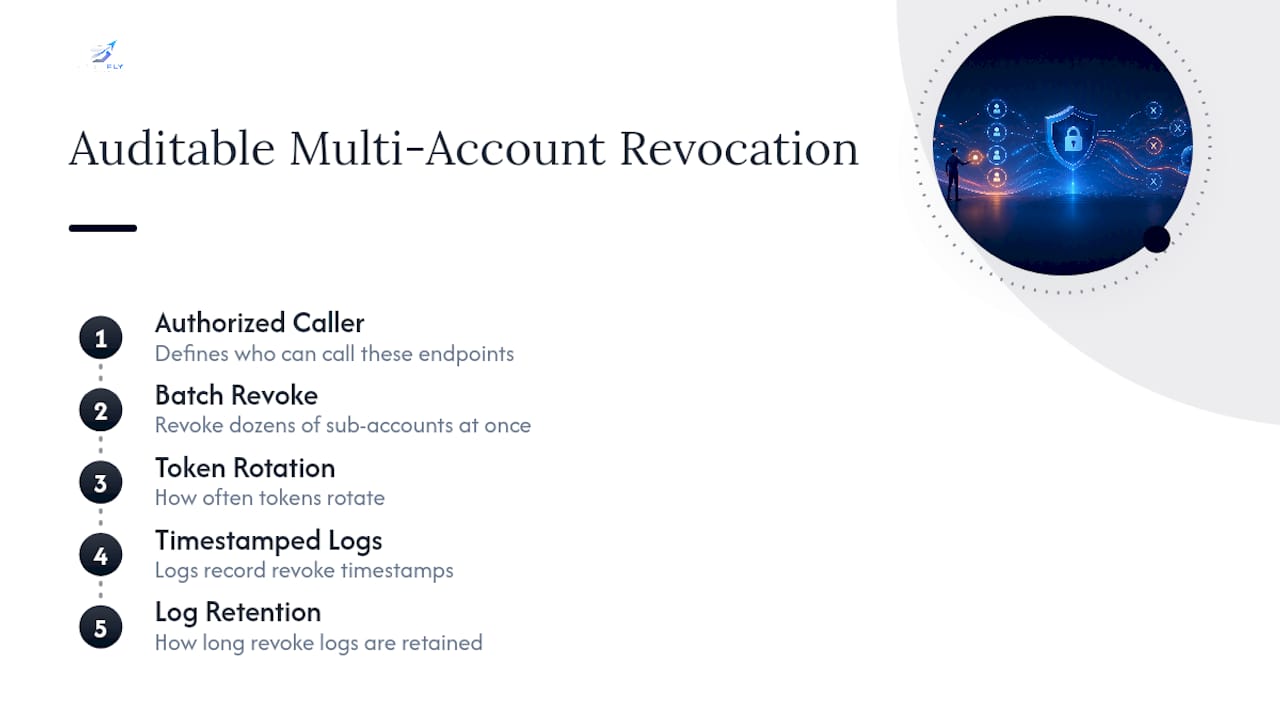
For firms running dozens of sub-accounts, batch revocation and cancelEverything turn a slow, error-prone manual process into something auditable and fast. A workable standard operating procedure defines who can call these endpoints, how often tokens rotate, and how long revoke logs are retained. Without that structure, access cleanup becomes inconsistent exactly when consistency matters most.
What This Guide Gets Right (and Where the Advice Usually Stops Short)
Most Tradovate documentation treats revocation as a one-time cleanup task: something you do after a mistake, a breach, or an offboarding. That framing is accurate but incomplete. The UI and API steps above work well as an emergency response. They don't do anything to prevent the scenario that made emergency revocation necessary in the first place.
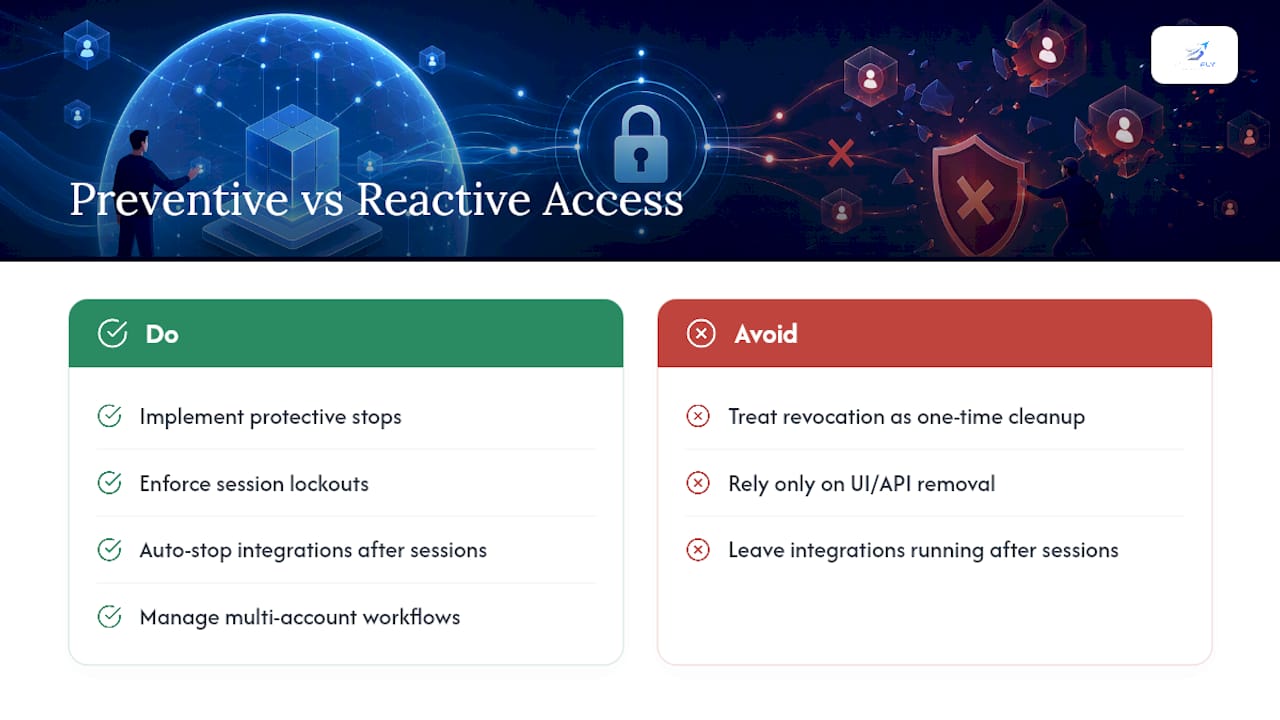
The gap in conventional advice is that it stops at removal. It doesn't address why traders end up needing to revoke access under pressure, usually because a copied trade went wrong on one account while the trader was focused on another, or because an integration kept running after a session should have ended. Batch revocation and cancelEverything are the right tools for cleanup. They're reactive by design.
If you manage more than one Tradovate account, the more useful question is whether you can reduce how often you need these tools at all. That means building in protective stops and lockouts before something goes wrong, not just knowing how to pull the plug after it does.
— Arturo
A Related Option: Continuous Protection Instead of Emergency Revocation
Revocation solves the problem after it happens. SafeFly is built for traders who'd rather not get to that point in the first place. It connects to Tradovate through secure OAuth, the same authorization layer discussed earlier, and mirrors trades from a lead account to every linked sub-account automatically, so you're not manually replicating orders across accounts under time pressure.
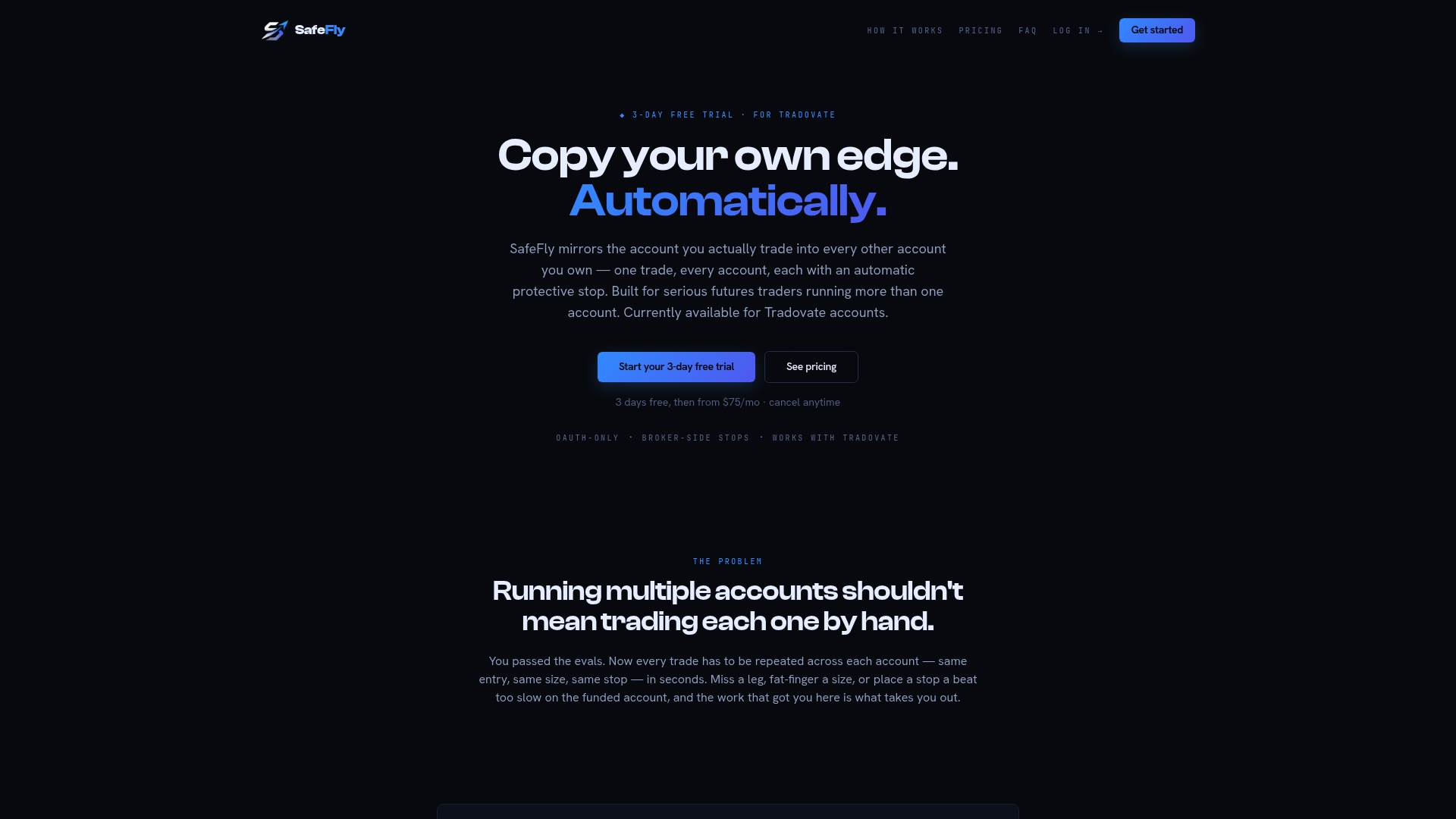
Every mirrored trade goes out with a broker-side protective stop attached, which keeps positions covered even if your connection drops mid-session. Daily profit and loss lockouts stop trading automatically once a risk threshold is hit, before a bad stretch turns into a reason for emergency cleanup. Combined with detailed trade analytics and AI coaching, this approach gives multi-account traders a way to manage risk continuously rather than reactively. If constant manual oversight and occasional access lockdowns feel like the wrong long-term plan, see how SafeFly's OAuth integration and automation work and check whether it fits your account setup.
Official Documentation and Support to Bookmark
For direct reference, the Tradovate API documentation for revoking trading permissions and the CancelEverything endpoint cover the technical specifics. For UI-based account management and troubleshooting, Tradovate support and the Collective2 permissions guide walk through the same steps from a support-desk angle.
Sources
- Revoke trading permissions — Tradovate API docs
- Tradovate - Grant Permissions Process — Collective2 Support
- Tradovate support portal
FAQ
How Do I Access Application Settings on Tradovate?
Log into trader.tradovate.com, click the account menu in the top-right corner, and select Application Settings. The Accounts tab inside that menu lists every connected app and its current permission status.
Why Does Tradovate Keep Signing Me Out?
Repeated sign-outs are usually tied to session timeouts, an expired authentication token, or a security check triggered by an unrecognized device. Check your trusted devices list under account security and confirm you're not switching between live and demo sessions without fully logging out first.
How Do I Remove an Account on Tradovate?
Account removal isn't the same as revoking app access. To disconnect a third-party app from a specific account, use Application Settings → Accounts → Revoke Permission; to close or manage the account itself, contact Tradovate support directly.
How Do I Adjust My Risk Settings on Tradovate?
Tradovate's native risk controls live within account and order settings, but they cover basic limits rather than continuous automated protection. Tools like SafeFly add layered risk management, including broker-side stops and daily P&L lockouts, on top of the base account.
What's the Fastest Way to Revoke Access Across Multiple Accounts at Once?
Use the API's batch revoketradingpermissions call or cancelEverything rather than revoking through the UI account by account. Remember to call both the live and demo hosts if you use both environments, since one call doesn't clear the other.