

To revoke broker permissions for a third-party app connected to Tradovate, go to Application Settings → App Permissions, locate the app by name, and select revoke. This action terminates the app's OAuth token on Tradovate's servers immediately, so tools like SafeFly (or any mirroring app) lose the ability to place, adjust, or refresh trades on your account the instant you confirm.
TL;DR:
- Revoke broker permissions only affects the app’s OAuth token and immediately cuts off its ability to place or adjust trades, but does not close existing positions.
- Always verify that stops are broker-side before revoking, as app-managed stops disappear instantly, risking unprotected positions if not properly configured.
- Revoking can be done quickly via the UI or programmatically through API endpoints, but batch revokes require careful handling to avoid mistakes across multiple accounts.
- Following revocation, confirm the app is removed from the permissions list, check account activity for suspicious trades, and rotate personal API keys if ever used.
- Using broker-side stops and daily profit-and-loss lockouts minimizes the risk of exposure if an app is disconnected unexpectedly.
Table of Contents
- Where to Revoke Broker Permissions in Tradovate
- What Happens to Your Trades After You Revoke Access?
- Advanced: Revoking Broker Permissions by API
- Checklist: Before and After You Revoke Access
- How Do You Confirm the Revocation Worked?
- Why Permission Audits Matter More Than Most Traders Assume
- Fewer Emergency Revokes Start With Better Defaults
- Sources
- FAQ
Where to Revoke Broker Permissions in Tradovate
Removing a connected app takes less than a minute once you know the exact path. Tradovate keeps this control separate from your personal API credentials, which matters because deleting the wrong item can either fail to disconnect the app or accidentally break your own scripts.
Here is the sequence:
- Log into Tradovate and open your account menu, then select Application Settings.
- Click the "App Permissions" tab. This is where every third-party OAuth connection lives, according to Tradovate's own settings guidance.
- Identify the app by its consent screen title. Review the scopes it was granted (read-only market data, order placement, account access) before you act, so you know exactly what you're cutting off.
- Select "Revoke" or "Remove." Confirm any prompt Tradovate displays, and note the timestamp shown on the confirmation screen. That timestamp becomes useful later if you need to prove when access ended.
The one warning worth repeating: do not confuse App Permissions with the API Access tab. API Access manages your own personal API keys, the ones you might use for custom scripts or direct integrations. Tradovate itself flags this as a common point of confusion, since deleting a personal key here does nothing to revoke a third-party app's OAuth grant, and revoking the wrong item can quietly break your own tooling while leaving the app you meant to cut off still connected.
If you use SafeFly and want a walkthrough built specifically around its connection screen, the SafeFly guide to revoking app access on Tradovate covers the same steps with screenshots matched to that flow.
What Happens to Your Trades After You Revoke Access?
Revocation is server-side and instant. The moment you confirm, Tradovate invalidates the app's OAuth token, and the app can no longer refresh that token or place new orders on your behalf. Any refresh token the app was holding becomes useless, which is exactly how Tradovate's OAuth token exchange is designed to work.
That immediacy is also the risk. If the third-party app was enforcing broker-side stops or a daily profit-and-loss lockout, those protections stop refreshing the second the connection dies, according to Tradovate's settings documentation. An open position that depended on the app's stop logic can sit unprotected.
Before or immediately after revoking, take stock of your exposure:
- Check every open position across every connected account, not just the lead account.
- Confirm whether any stop orders sitting on the broker's side survive independently of the app, or whether the app was managing them dynamically.
- Reconfigure a manual stop in Tradovate directly if you have any doubt about coverage.
Pro Tip: Revoke access only after you've either closed your positions or confirmed your stops live on the broker's servers, not inside the app you're about to disconnect. A stop that only existed in the app's memory disappears with the token.
Advanced: Revoking Broker Permissions by API
Traders running scripted audits or managing access for a team of accounts can skip the UI entirely and revoke programmatically. Tradovate's partner API exposes two endpoints built for this.
- Single revoke:
POST /user/revoketradingpermissionaccepts atradingPermissionIdand immediately terminates that one grant. - Batch revoke:
POST /user/revoketradingpermissionsaccepts a list oftradingPermissionIdvalues, useful for cutting off access across multiple accounts in one call, per Tradovate's batch revoke endpoint documentation. - Authentication: both endpoints require a bearer token in the Authorization header, so this route is intended for vendors, developers, or anyone comfortable scripting against Tradovate's revoke trading permission endpoint.
Responses return an ok boolean along with an optional errorText field. Log every response. If ok comes back false, the error text usually tells you whether the permission ID was already invalid or whether the auth token itself lacked the right scope. Batch calls in particular deserve a second look before you run them. Revoking the wrong ID across ten accounts at once is a much bigger mistake than doing it one account at a time.
Checklist: Before and After You Revoke Access
A rushed revoke is how traders end up with an unprotected position they didn't mean to leave exposed. Run through this sequence instead.
Before you revoke:
- Take a snapshot of every app currently listed under App Permissions, so you have a record of what was connected and when.
- Close or secure any position that depends on the app's logic, especially anything using dynamic or trailing stops the app manages remotely.
- Confirm which stops are broker-side and will survive the disconnection versus which ones only exist inside the app.
After you revoke:
- Return to App Permissions and confirm the app no longer appears in the list.
- Rotate your personal API keys if the third-party app ever had access to them directly, even though API keys live in a separate tab.
- Review your account activity log for the period right after the revoke to confirm nothing unexpected fired.
If you plan to reconnect the same app or a different one later, grant the narrowest scopes it needs rather than full account access, and set a daily profit-and-loss lockout where the platform supports it, following the least-privilege approach Tradovate recommends for third-party connections. SafeFly's own guide to OAuth scope hygiene walks through what "minimal scope" actually looks like in practice.
Pro Tip: Treat your app permissions list the way you treat your open positions: something you check on a schedule, not just when something feels wrong.
How Do You Confirm the Revocation Worked?
Go back to Application Settings → App Permissions and confirm the app is gone from the list. Tradovate's system also timestamps the removal, so that record should match what you saw on the confirmation screen when you first revoked access.
If the app still seems to be interacting with your account after revocation:
- File a support ticket with Tradovate that includes the exact app title and the timestamp of your revoke action.
- Rotate your API keys immediately, since a still-active connection after a confirmed revoke can point to a separate credential the app retained.
- Pull your account's audit logs and look for order activity that doesn't match your own trading, which is the clearest sign of unauthorized access rather than a delayed sync.
Most of the time, a "still connected" app is a caching delay on the app's side rather than a failed revoke. But treat any activity after the timestamp as suspicious until you've confirmed otherwise.
Why Permission Audits Matter More Than Most Traders Assume
Disconnection risk in multi-account futures trading rarely announces itself. An app loses its token, a stop that depended on it stops refreshing, and the first sign of trouble is a position that moved further than it should have. That gap between "I revoked access" and "I confirmed my risk controls still work" is where damage happens.
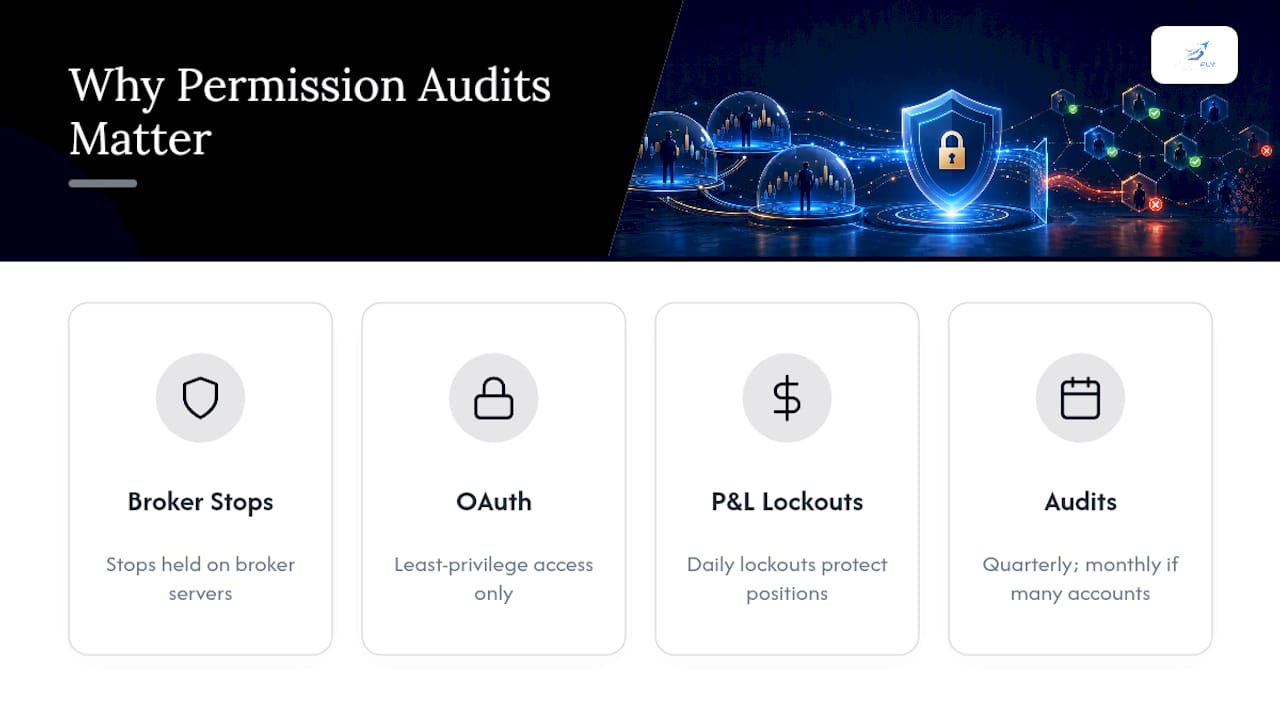
Broker-side stops close that gap because they live on the broker's servers, not inside the app you might someday need to disconnect. SafeFly builds around that distinction. Every trade it mirrors carries a protective stop that sits broker-side, so a disconnection doesn't leave a position naked, and its OAuth integration follows the same least-privilege principle worth applying to any app you connect. Daily profit-and-loss lockouts add a second layer that doesn't depend on the connection staying alive at all.
Run your permission audit on a schedule, not just after something goes wrong. Quarterly is reasonable for most traders; monthly if you're managing several accounts.
— Arturo
Fewer Emergency Revokes Start With Better Defaults
The scenario this article walks through, scrambling to revoke access while a position sits exposed, usually traces back to how the connection was set up in the first place. SafeFly is built around avoiding that scramble entirely. It copies only trades you place yourself, never third-party signals, and attaches a broker-side protective stop to every copied trade automatically, so a dropped connection doesn't leave a position unprotected the way an app-managed stop can.
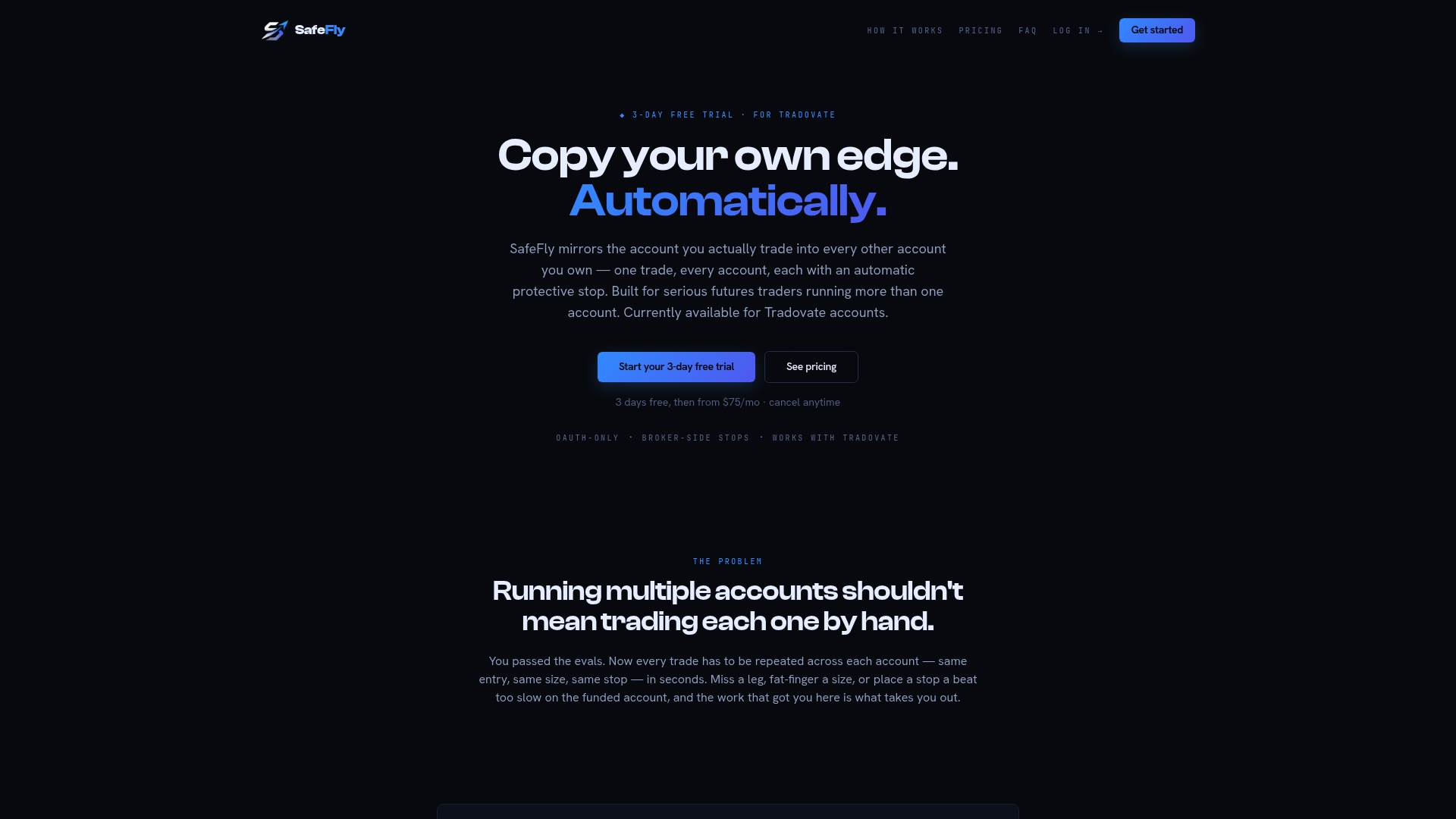
The OAuth connection never stores your broker password, and daily profit-and-loss lockouts cap your exposure without requiring you to babysit the app. You can see exactly how the replication and stop logic works on the SafeFly product overview, and compare the Basic, Pro, and Ultra plans starting at $49 per month to find the tier that matches how many accounts you run. If you're managing multiple Tradovate accounts by hand right now, that's the next thing worth checking before your next trade.
Sources
- Tradovate settings overview (App Permissions)
- Revoke Trading Permission (Tradovate partner API)
- Revoke Trading Permissions (batch) — Tradovate partner API
FAQ
Does Revoking Broker Permissions Close My Open Positions?
No. Revoking access only cuts off the app's ability to place or manage new orders. Any open positions stay open, so confirm your stops are broker-side before you revoke.
What's the Difference Between App Permissions and API Access?
App Permissions controls third-party OAuth connections like trade-mirroring apps, while API Access manages your own personal API keys. Deleting the wrong one either fails to disconnect the app or breaks your own scripts.
Can I Revoke Access Through the API Instead of the UI?
Yes. Tradovate's partner API offers POST /user/revoketradingpermission for a single revoke and POST /user/revoketradingpermissions for batch revokes, both requiring bearer token authentication.
How Do I Know the Revoke Actually Worked?
Check App Permissions again and confirm the app no longer appears in the list, and note the removal timestamp Tradovate provides on confirmation.
Does SafeFly Still Protect My Trades if I Disconnect It?
Stops that were already placed broker-side before disconnection remain in place, since SafeFly attaches a protective stop to every copied trade at the broker level rather than only inside the app, as described on its disconnection protection page.